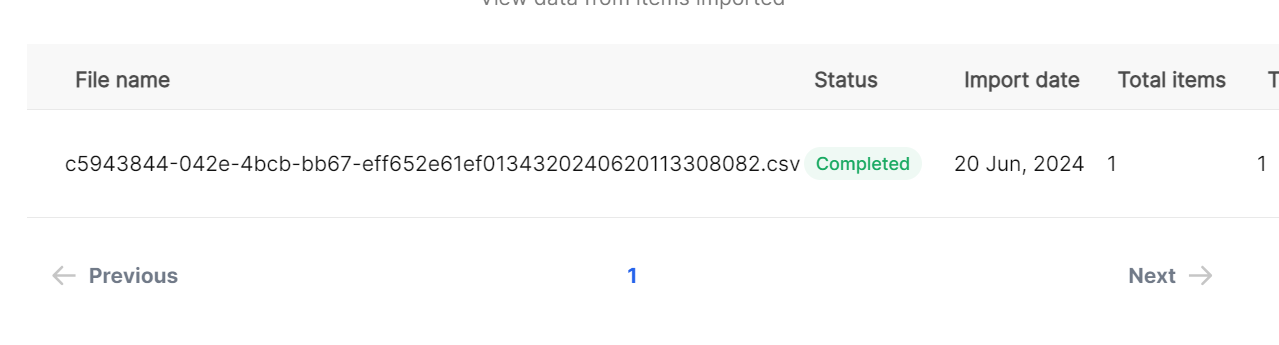
Manage inventory
On Vencru, you can track products by location using the multi-location feature. This is useful for businesses where stock/inventory is organized in multiple locations.
To add inventory by location
- Click on the Inventory button on the menu bar.
- Click on Inventory
- Click on Add item
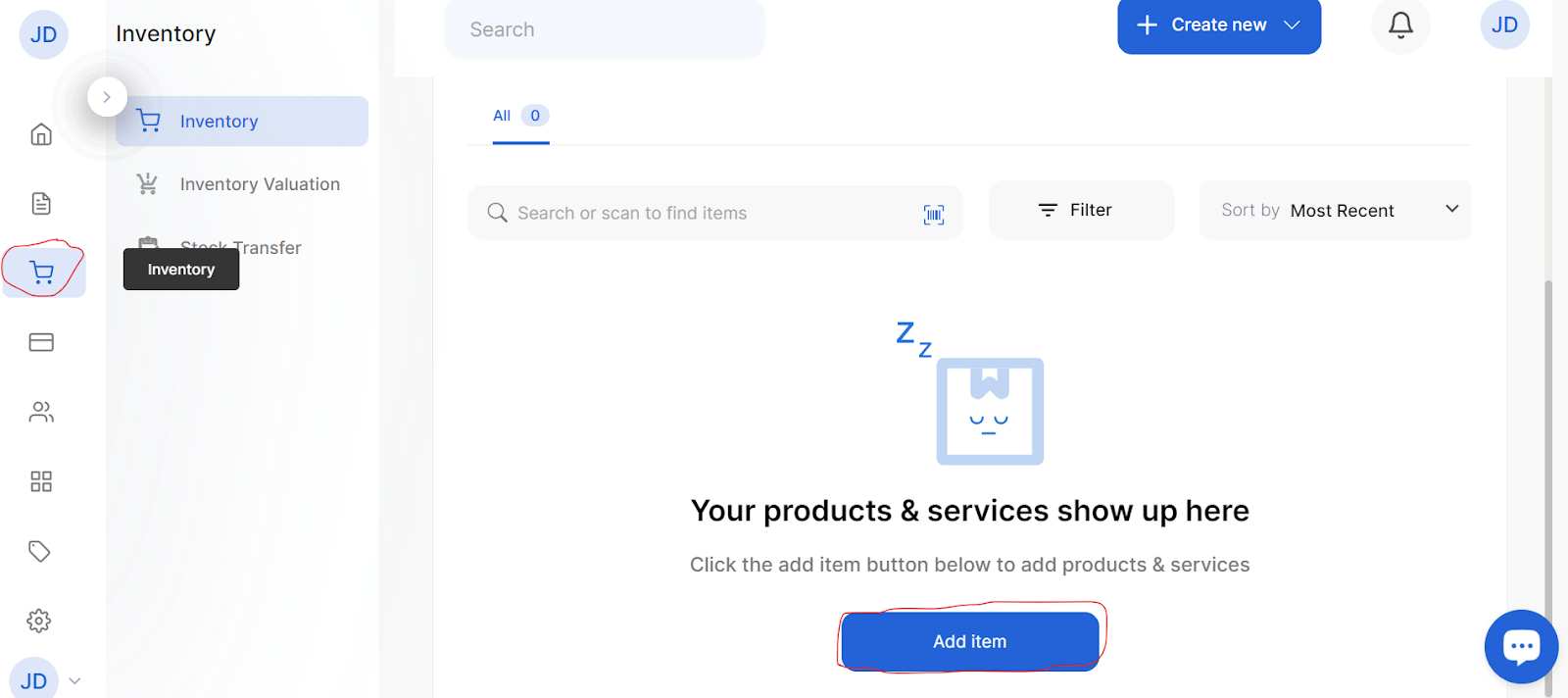
- Fill in the necessary information and scroll down.
- Add Product details
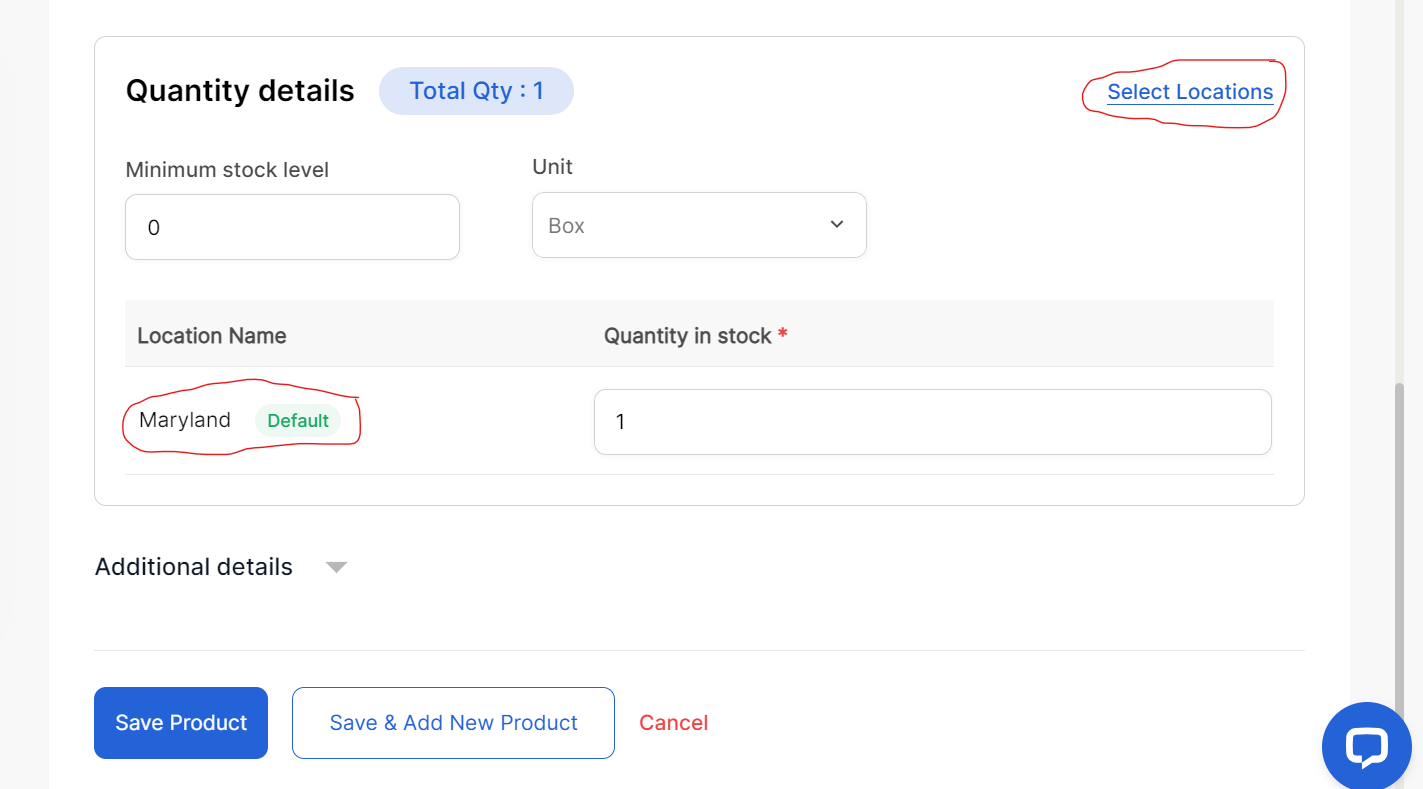
- Input the quantity you want
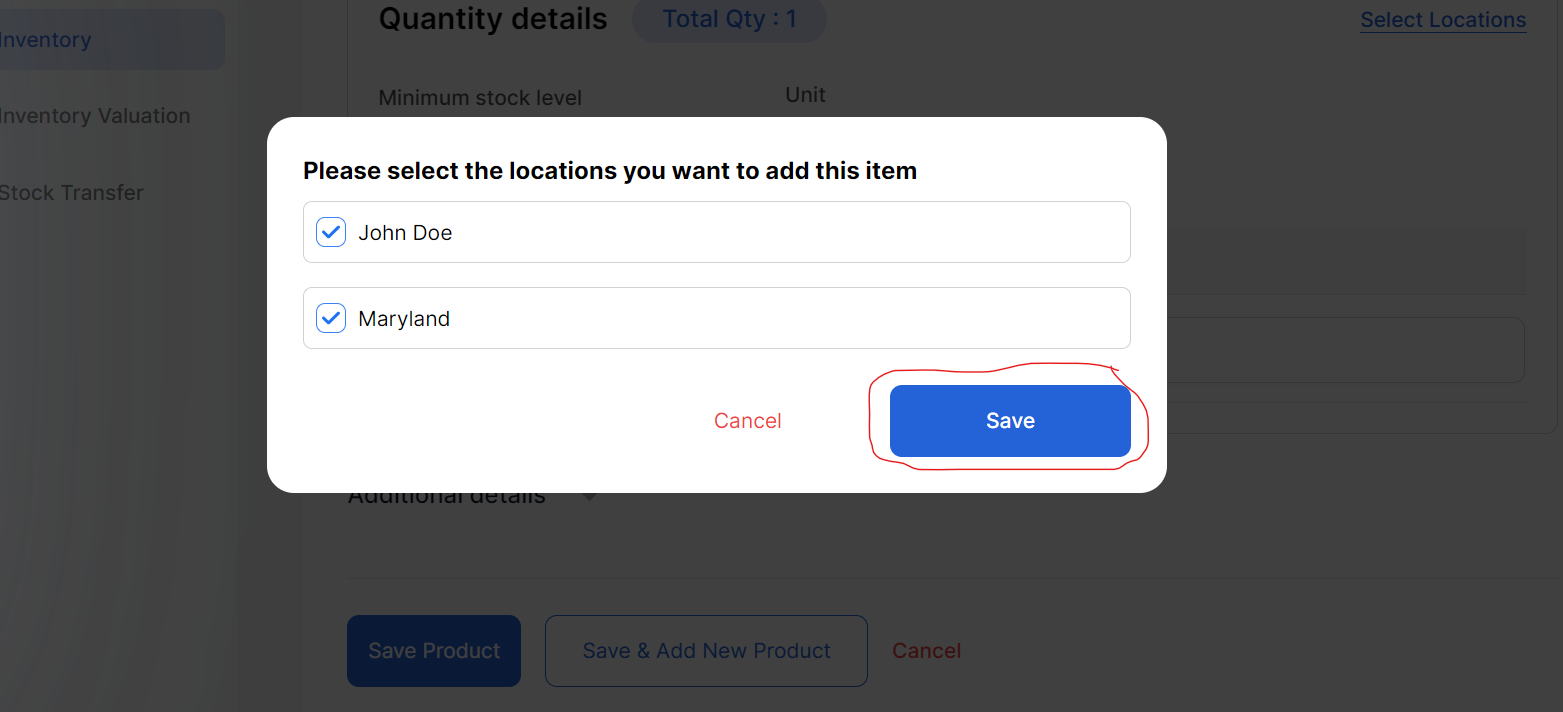
- You can either leave the default location, select a new one or pick multiple locations.
- Save your preferred location by clicking on Save
- Click on Save Product or Save and Add New Product
Update Stock
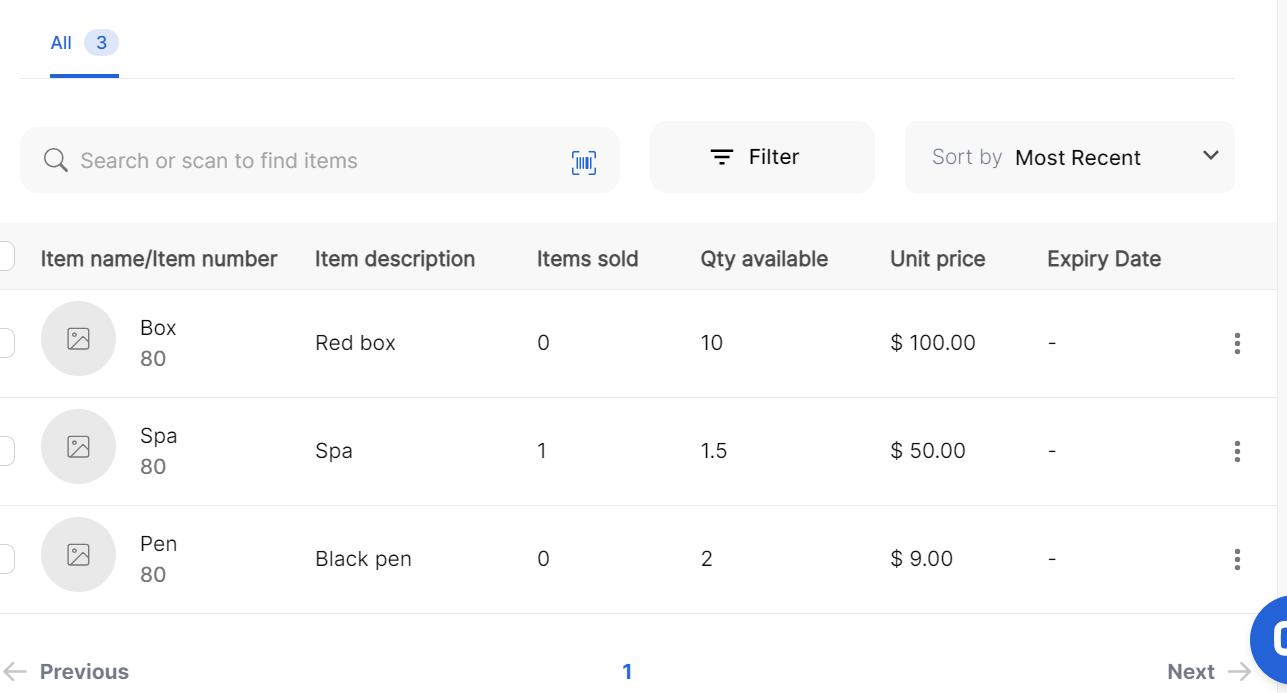
- Click on the Inventory button on the menu bar
- Click on any Item
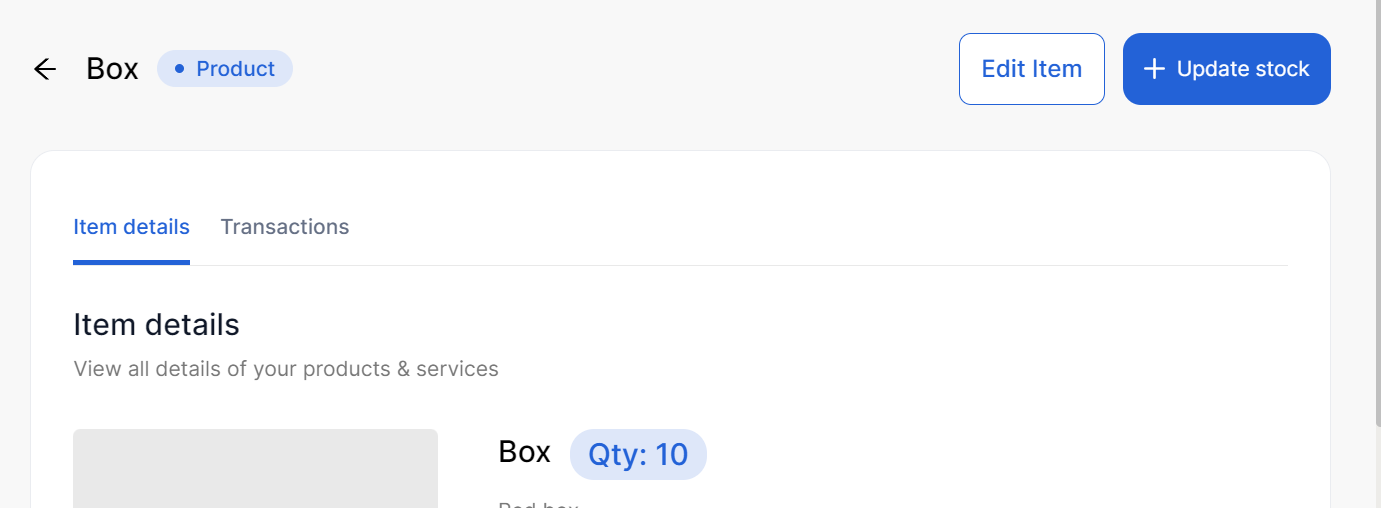
- Click on Update stock
- Choose your preferred location and fill in the other details
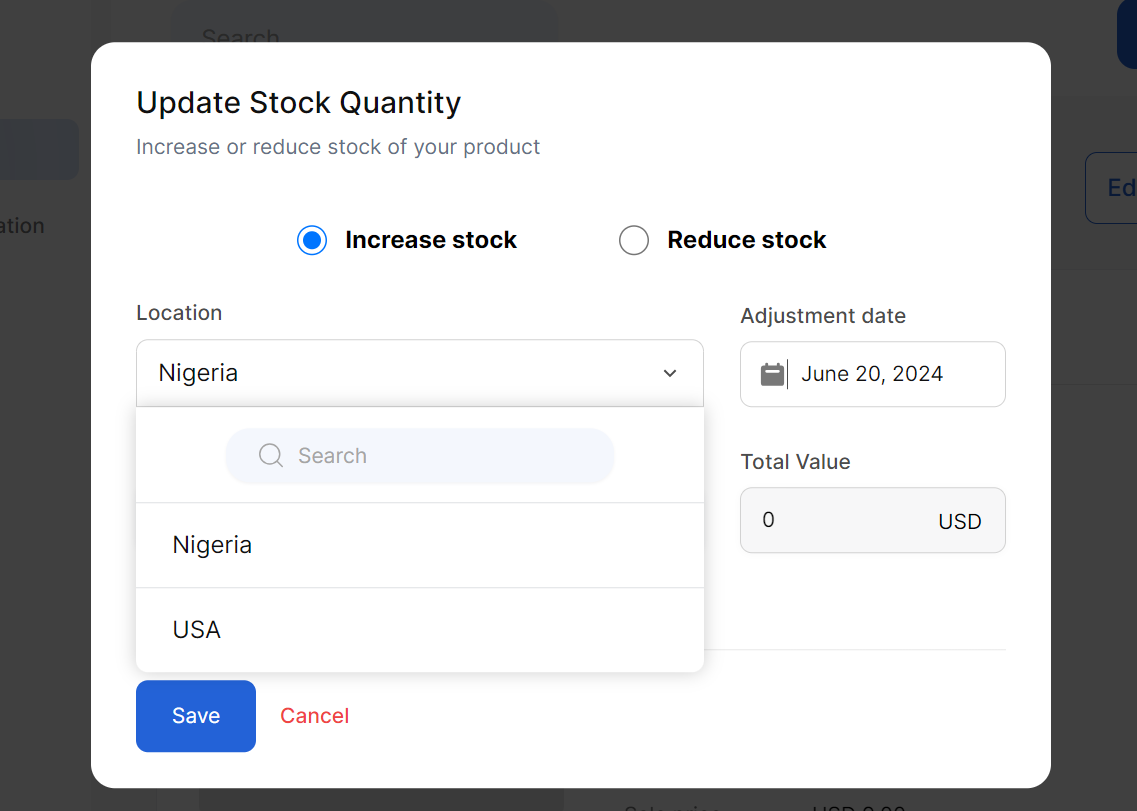
- Click on Save
Import Products
- Click on the Inventory button on the Menu Bar
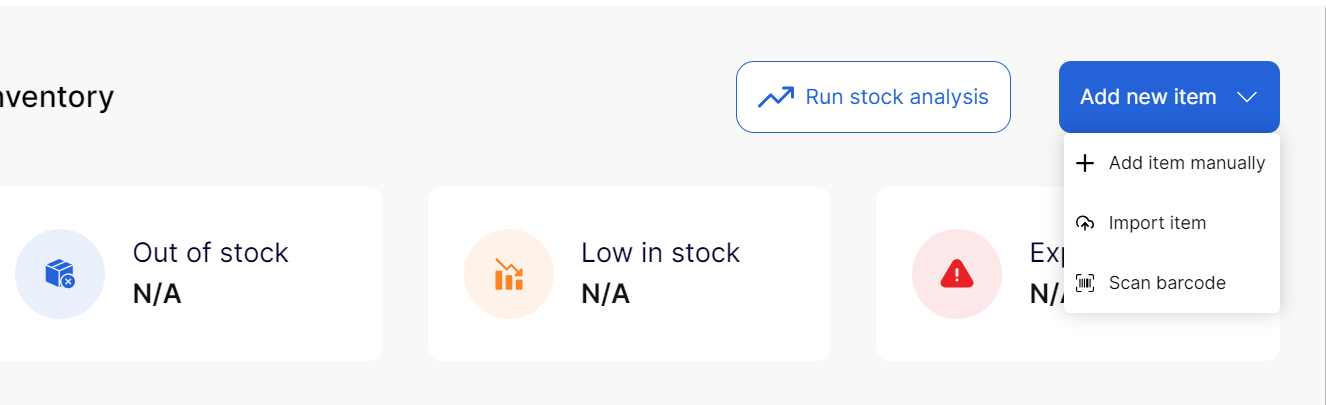
- Click on the Add New Item drop-down and click on Import Item
- Scroll down and click on the download template file link

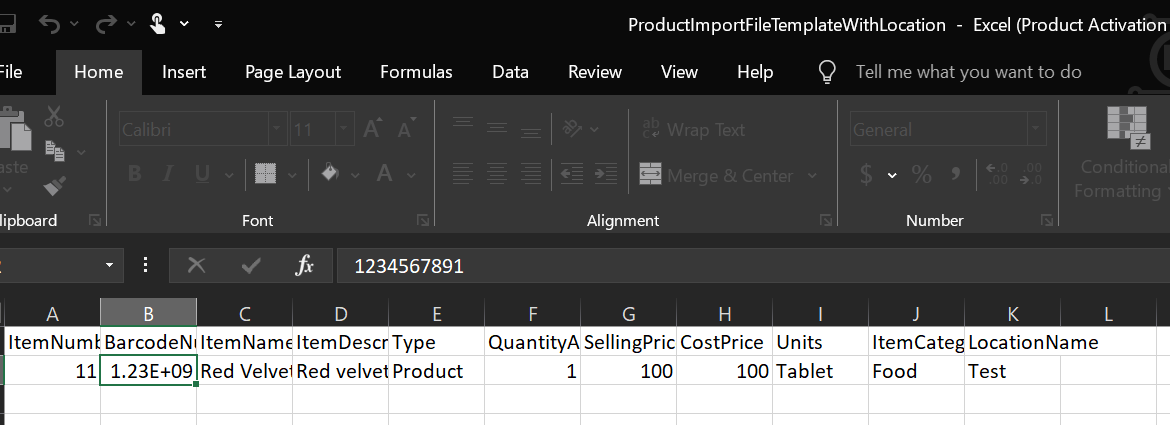
- Fill out the template with your inventory information
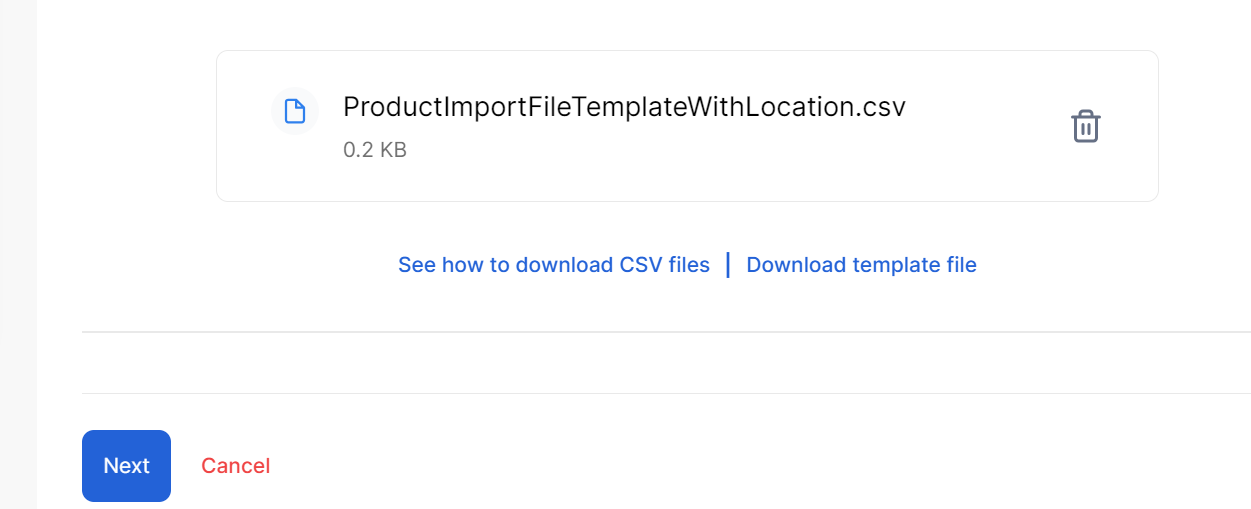
- Upload the CSV and click on Next
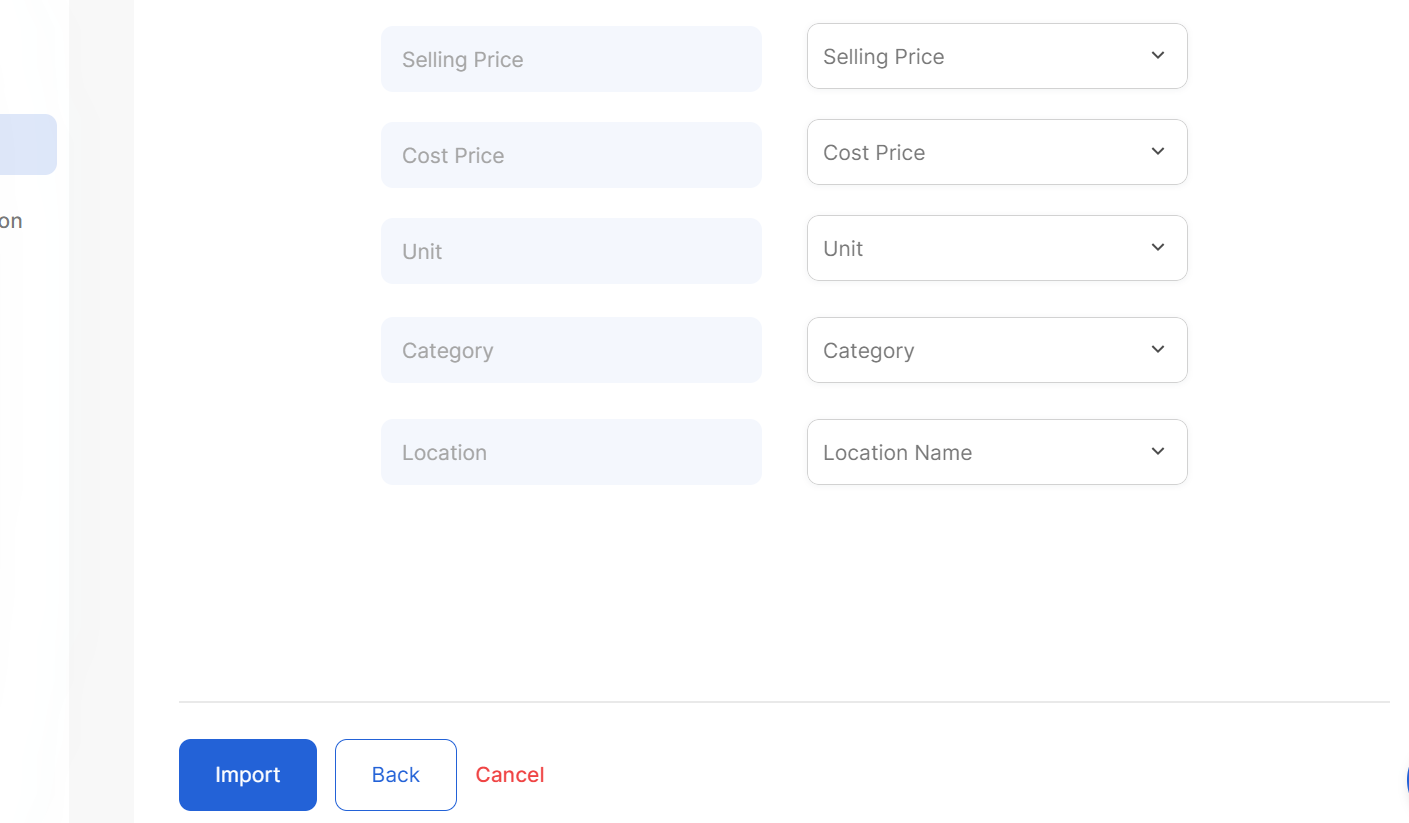
- Fill in the fields and click on Import
- You’ll get a successful notification and your products will be imported.